Anime Music Video Maker - Auto Beat-Sync for AMVs
Stop manually keyframing chromatic aberration on every single snare drum. Load your episodes, select a preset, and let AI snap the best scenes directly to your track.
The Problem
Making a beat-synced AMV in Premiere or CapCut means manually placing every single cut on a beat marker. For a 3-minute Phonk track at 140 BPM, that's 420 potential cut points you need to consider. Then you keyframe the chromatic aberration, the flash frames, the zoom pulses - one by one.
That's 6–10 hours of manual labor for a single AMV. You have the vision. You shouldn't need to do the math.
The Onset Engine Solution
Onset Engine's AMV preset was built specifically for this. It makes a fast, anime-style edit with echo trails, freeze frames, comic-panel splits, whip zooms, and motion streaks - automatically mapped to your music's energy curve.
- ✓ AI Scene Analysis: The AI understands the difference between "character standing calmly" and "final explosion sequence" without you tagging anything
- ✓ Beat-Perfect Cuts: Every cut lands within ±200ms of a musical onset - snare hits, kicks, drops
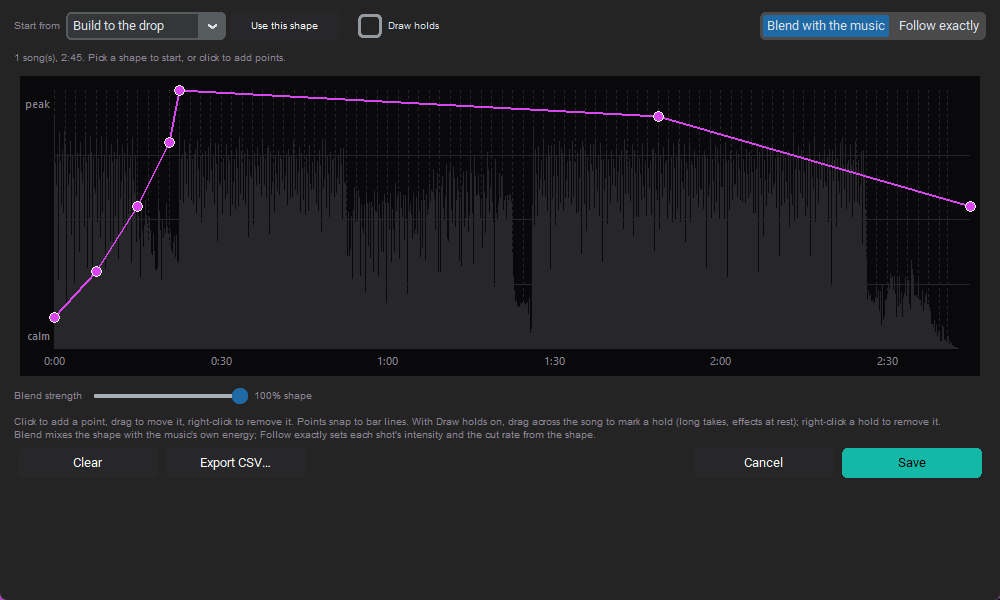
- ✓ Energy Mapping: Calm dialogue scenes play during quiet intros. Fight scenes hit during drops
- ✓ Driver System: The v3 JSON driver lets you define tiers like "standing still" → "sword fight" → "transformation sequence"
The Workflow
Import Episodes
Point Onset Engine at a folder of anime episodes. The AI analyzes every scene and learns what's in each one.
Choose Your Track
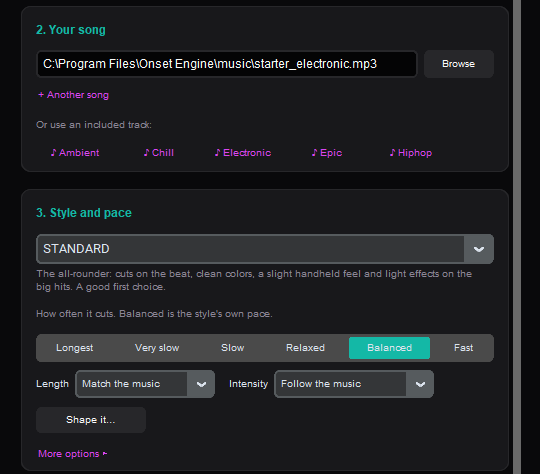
Drop in your Phonk, EDM, or rock track. Onset Engine maps every beat, energy peak, and drop automatically.
Select AMV
The preset adds echo trails, freeze frames, comic-panel splits, whip zooms, and motion streaks, with fast cuts on the beat.
Hit Render
Onset Engine builds the full timeline, places fight scenes on drops, and renders with full VFX. Export or open in your NLE via OTIO.
Beyond Templates
Unlike CapCut templates or Premiere presets, Onset Engine doesn't just apply a visual style to random clips. The AI understands what's happening in each scene and maps it to musical intensity. A quiet piano intro gets calm establishing shots. The Phonk drop gets the final battle.
And because the entire engine runs locally, you never have to upload your favorite anime episodes to a cloud server. Your library stays on your machine.
Frequently Asked Questions
Can Onset Engine automatically sync anime clips to music beats?
Yes. Onset Engine uses AI beat detection to find every beat, downbeat, onset, and energy peak in your track, then mathematically places clips on beat boundaries. The AMV preset adds echo trails, freeze frames, comic-panel splits, whip zooms, and motion streaks timed to musical intensity.
Do I need to manually tag or sort my anime clips?
No. During ingest, the AI analyzes every scene and builds a searchable fingerprint of what's in it. The AI automatically distinguishes fight sequences from calm dialogue scenes and maps them to appropriate energy levels in your music.
Does my anime footage get uploaded to the cloud?
Never. Onset Engine runs 100% locally on your hardware. All AI analysis, beat detection, and rendering happen on your GPU and CPU. Your footage never leaves your machine, and there is zero telemetry.
Can I export my AMV timeline to Premiere Pro or DaVinci Resolve?
Yes. The Studio tier exports OpenTimelineIO (.otio) files that preserve all clip references, in/out points, and timing. Open the file in your NLE to apply additional effects, color grading, or manual refinements.
Ready to Try It?
Download the free demo and see the results on your own footage. One-time purchase, no subscriptions.