Does Premiere Pro Detect Beats?
The desktop app doesn't. Premiere Pro can retime a song to fit a length, but there is no command that analyzes a track and drops a marker on each beat. Every beat-synced workflow in Premiere starts the same way: get a marker on every beat (or every bar), then let snapping do the work.
Step 1: Get a Marker on Every Beat
By hand: tap M
- Put the song on an audio track in your sequence and click an empty part of the timeline, so no clip is selected. With a clip selected,
Madds a marker to that clip instead of the sequence. - Play from the start and press
Mon every beat. Each press drops a sequence marker at the playhead. - Widen the audio track to see the waveform, then drag any marker that landed early or late onto the start of the drum hit.
It works, but a 3-minute song at 120 BPM is about 360 beats, and your taps will be a frame or two off here and there. For a slower edit, tap only the first beat of each bar: a quarter of the work.
Imported: a marker on every beat, named by bar
Onset Engine finds every beat and bar start in a song and writes a Premiere Pro file with a marker on each one, for free in the Demo:
- Add your song in Onset Engine's AUDIO tab and click ⇩ BEATS.
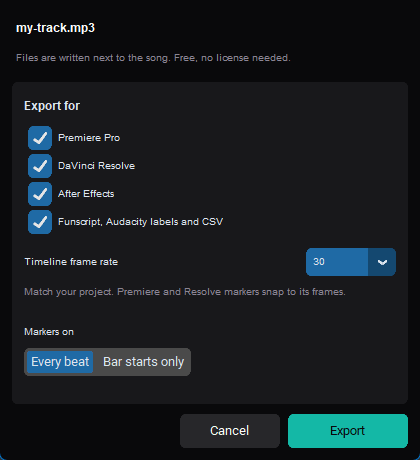
- Tick Premiere Pro, set Timeline frame rate to your sequence's frame rate, and choose Every beat or Bar starts only.
- In Premiere, File → Import the
_beats.xmlfile it writes next to the song. It opens as a new sequence with the song on the first audio track and a marker on every beat.
Each marker is named by bar and beat: 12.3 is the third beat of bar 12, so bar starts are the markers ending in .1. Build your edit in that sequence by adding your video on the tracks above the song.
Step 2: Cut to the Markers
Snap cuts by hand
- Turn on snapping with
S. Clip edges, the playhead and the Razor tool (C) now jump to the nearest marker. - Jump the playhead from marker to marker with
Shift+M(next) andCtrl+Shift+M(previous), and cut at each one. - Change shots on bar starts and save the in-between beats for accents. Cutting on every single beat gets tiring to watch fast.
Place clips automatically: Automate to Sequence
This is Premiere's closest thing to auto beat sync, and it's built in. It works well for photo slideshows and quick montages:
- Make sure the sequence has markers where the cuts should go, and park the playhead at the start.
- In the Project panel, select the clips or photos you want, in the order you want them.
- Choose Clip → Automate to Sequence.
- Set Ordering to Selection Order and Placement to At Unnumbered Markers, and untick the default transitions.
Premiere places one clip at each marker, lasting until the next one. With markers on bar starts only, you get one shot per bar, which suits most music. Then go through and pick better moments inside each clip by slipping it (Y).
Add an effect on every beat
- Create an adjustment layer (File → New → Adjustment Layer) and lay it across the track above your footage.
- With snapping on, cut it at the beats you want to hit using the Razor tool.
- Apply your effect to the first piece that starts on a beat: a quick zoom with Transform, a white flash, a shake. Keep it short, a few frames.
- Copy that piece's effect (Edit → Copy), select the other pieces that start on a beat, and Edit → Paste Attributes.
Tips for Cutting to the Beat in Premiere
- Match the frame rate. Markers sit on whole frames. If your sequence is 29.97 fps, export the markers at 29.97, not 30.
- Check the beat length. At 128 BPM and 24 fps, a beat is 11.25 frames, so beats never line up on a fixed frame count. The BPM to FPS calculator shows the exact frame for each beat.
- Cut slightly before the hit for fast action. A cut a frame or two before a big drum hit can feel tighter than one exactly on it. Try both on your loudest moment.
- Use bar names to find the drop. With markers named by bar, you can see from the timeline that the drop starts at, say, bar 33, without scrubbing for it.
Or Let Onset Engine Cut the Whole Thing
Markers speed up a hand-made edit. If you'd rather start from a finished cut, Onset Engine builds the whole beat-synced edit from your own footage: it picks calm shots for quiet passages and high-motion shots for the drop, and cuts on the beat. Render it directly, or on Studio export the timeline as an .xml to finish in Premiere Pro.
Premiere Pro Beat Sync Questions
Does Premiere Pro have automatic beat detection?
Not the desktop app. Premiere Pro can retime a song to a new length, but it has no command that finds the beats and marks them. You tap markers in by hand, use a plugin, or import a file that already has a marker on every beat.
How do I make clips match the beat automatically in Premiere Pro?
Put a marker on every beat (or every bar), select your clips in the Project panel, and run Automate to Sequence with Placement set to At Unnumbered Markers. Premiere places one clip per marker, each lasting until the next marker.
How do I add an effect every time there is a beat?
Put an adjustment layer on the track above your footage, cut it at the beat markers with snapping on, and apply the effect (a flash, a zoom, a shake) to the short pieces that start on a beat. Copy the effect once and paste it onto every other piece.
Why are my cuts slightly off the beat?
Usually because the markers were tapped in by ear, or because the beat falls between two frames. Zoom in on the waveform and drag each marker onto the start of the drum hit, or use markers placed from the song itself, which sit on the frame nearest to each beat.
Onset Engine runs on Windows. The marker file is a plain file, so you can carry it to a Mac too; Premiere will ask you to locate the song.